How to Remove Duplicates in Google Sheets (3 Easy Ways)
Duplicate rows sneak into every spreadsheet: a contact list imported twice, a form that someone submitted three times, two exports pasted on top of each other. Google Sheets gives you three good ways to deal with them, and which one you pick depends on whether you want to delete the duplicates, keep the original data untouched, or just see which rows are repeated.
Method 1: The built-in "Remove duplicates" tool
This is the fastest option when you simply want the duplicates gone.
- Select the range that contains your data, including the header row. To select a whole table quickly, click any cell inside it and press Ctrl + A (⌘ + A on Mac).
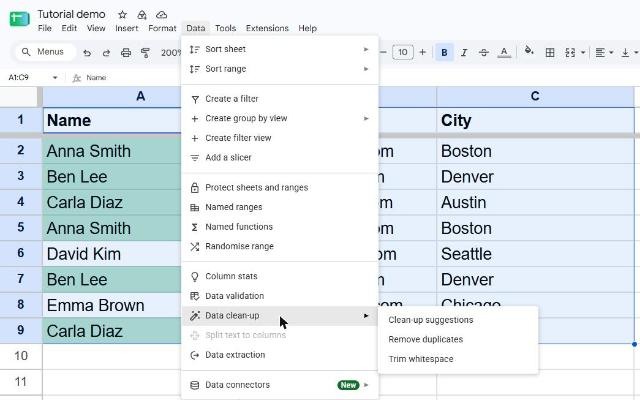
- Open the menu Data → Data cleanup → Remove duplicates. (If your Google account uses UK English, the menu is called Data clean-up.)
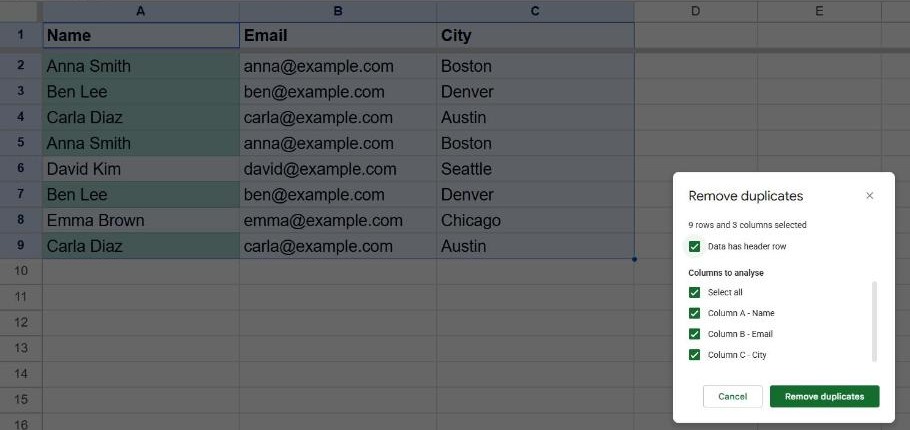
- If your first row contains column names, tick Data has header row. This stops Sheets from treating your headers as data.
- Under Columns to analyze, choose which columns must match for a row to count as a duplicate. Leave Select all ticked to remove only rows that are identical in every column.
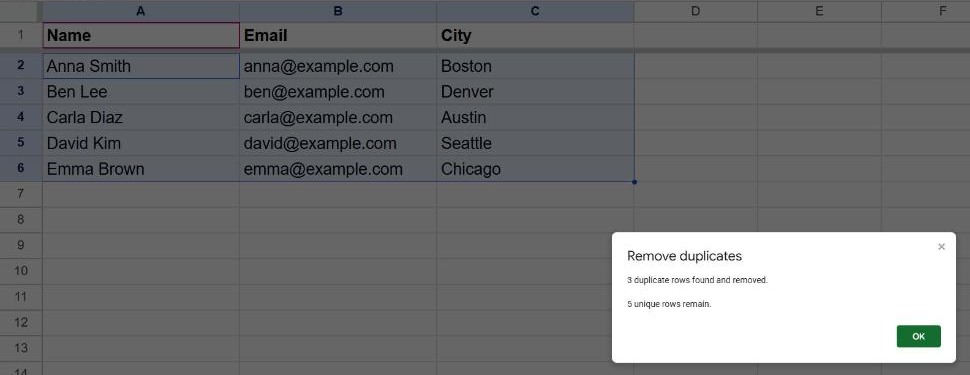
- Click Remove duplicates. Sheets tells you how many duplicate rows it found and how many unique rows remain.
Sheets keeps the first occurrence of each row and deletes the ones below it. If you change your mind, press Ctrl + Z to undo.
Tip: choosing specific columns is powerful. In a customer list, analyzing only the Email column removes every row that repeats an email, even if the name is spelled slightly differently.
Clean up spaces first
"Anna Smith" and "Anna Smith " (with a trailing space) look identical but are not, so they won't be treated as duplicates. Before removing duplicates, select your data and use Data → Data cleanup → Trim whitespace to remove extra spaces at the start and end of each cell.
Method 2: The UNIQUE function (keeps the original data)
If you don't want to delete anything, use a formula to create a duplicate-free copy of your data. In an empty cell, type:
=UNIQUE(A2:C)This returns every unique row from columns A to C. Because it's a formula, the result updates automatically when you add or change data in the source range, which makes it ideal for lists that keep growing, like form responses.
A few useful variations:
| Formula | What it does |
|---|---|
=UNIQUE(A2:A) | Unique values from a single column |
=SORT(UNIQUE(A2:A)) | Unique values sorted A → Z |
=COUNTA(UNIQUE(A2:A)) | How many different values there are |
Make sure there's enough empty space below and to the right of the formula. If other data is in the way, you'll see a #REF! error saying the result would overwrite existing cells.
Method 3: Flag duplicates with COUNTIF
Sometimes you need to review duplicates before deleting them. Add a helper column next to your data and enter this in row 2:
=COUNTIF($A$2:$A, A2)>1Drag the formula down. Every row whose value in column A appears more than once shows TRUE. You can then filter the helper column (Data → Create a filter) to see only the TRUE rows and decide what to keep.
To mark only the second and later copies (so the first one stays FALSE), use an expanding range instead:
=COUNTIF($A$2:A2, A2)>1Now filter for TRUE and delete those rows: the first occurrence of each value is kept.
If you'd rather see duplicates highlighted in color, follow our guide on how to highlight duplicates in Google Sheets.
Which method should you use?
| You want to… | Use |
|---|---|
| Delete duplicates right now, once | Data → Data cleanup → Remove duplicates |
| Keep the source data and get a clean list that updates itself | UNIQUE |
| Review duplicates before deciding | COUNTIF helper column |
Frequently asked questions
Does "Remove duplicates" delete the first or the last copy?
It keeps the first occurrence (the one highest in the sheet) and removes the copies below it. If you want to keep the most recent entry instead, sort the data so the newest rows are at the top before removing duplicates.
Why aren't some duplicates being removed?
Usually because of invisible differences: extra spaces, a number stored as text in one row and as a number in another, or different punctuation. Run Trim whitespace first and check that the column uses a consistent format.
Can I remove duplicates across two columns?
Yes. In the Remove duplicates dialog, tick only the columns that should match together, for example First name and Last name. A row is removed only when both columns match another row.