How to Use AVERAGE in Google Sheets (and AVERAGEIF)
AVERAGE adds up a group of numbers and divides by how many there are. It's one of the most-used functions in any spreadsheet, whether you're averaging test scores, monthly sales or response times. Here's how to use it and its useful cousins.
AVERAGE syntax
=AVERAGE(range)To average the scores in B2:B7:
=AVERAGE(B2:B7)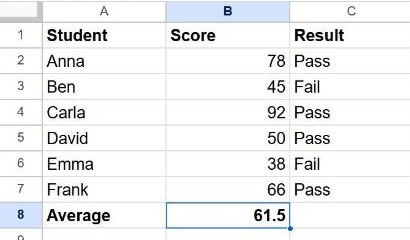
You can average separate cells too: =AVERAGE(B2, B5, B7), or mix ranges and cells.
AVERAGE ignores blanks and text
Empty cells and text are skipped, not counted as zero. That matters: if three of six rows are blank, AVERAGE divides by 3, not 6. If you actually want blanks counted as zero, use =SUM(B2:B7)/6 instead.
Average only cells that meet a condition: AVERAGEIF
To average only the rows in one category, use AVERAGEIF. With categories in column A and amounts in column C:
=AVERAGEIF(A2:A7, "Food", C2:C7)This averages the amounts where the category is "Food". The arguments are the range to test, the condition, and the range to average.
Conditions work like other IF functions: =AVERAGEIF(C2:C7, ">50") averages only amounts over 50. For several conditions, use AVERAGEIFS, with the average range first:
=AVERAGEIFS(C2:C7, A2:A7, "Food", C2:C7, ">10")Other quick summary functions
| Function | Returns |
|---|---|
=MEDIAN(B2:B7) | The middle value (less affected by outliers than the average) |
=MIN(B2:B7) | The smallest value |
=MAX(B2:B7) | The largest value |
=COUNT(B2:B7) | How many cells contain numbers |
Tip: select a range of numbers and look at the bottom-right corner of the screen. Sheets shows the Sum, Average, Min, Max and Count without any formula.
Fix the #DIV/0! error
AVERAGE returns #DIV/0! when the range has no numbers at all (all blank or text). Wrap it to show a friendlier result:
=IFERROR(AVERAGE(B2:B7), "No data")Frequently asked questions
Why is my average wrong?
Some "numbers" may be stored as text (they line up on the left). AVERAGE skips them, changing the count. Reformat the column as Format → Number → Number.
How do I round the average?
Wrap it in ROUND: =ROUND(AVERAGE(B2:B7), 1) keeps one decimal place.
Can I average a whole column?
Yes: =AVERAGE(B2:B) averages everything from B2 down, ignoring blanks.