How to Add Checkboxes in Google Sheets (and Count Them)
Checkboxes turn a spreadsheet into a to-do list, a packing list or an attendance sheet. Each box is either ticked or unticked, and because Sheets stores that as TRUE or FALSE, you can count them, use them in formulas and format rows based on them.
Insert checkboxes
- Select the cells where you want checkboxes, for example
C2:C6. - Go to Insert → Checkbox (called Tick box if your Google account uses UK English).
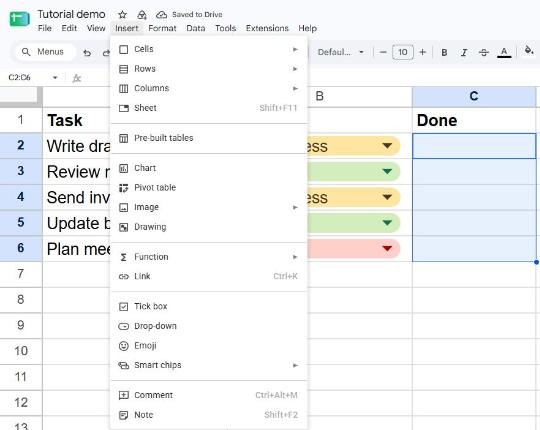
Click a box to tick it, or select it and press Space. Selecting several boxes and pressing Space ticks or unticks them all at once.
Count ticked checkboxes
A ticked box has the value TRUE and an empty one FALSE. To count how many tasks are done:
=COUNTIF(C2:C6, TRUE)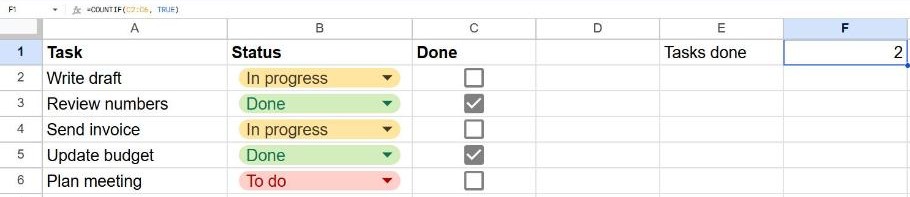
To show progress as a percentage, divide by the total number of boxes and format the cell as a percent:
=COUNTIF(C2:C6, TRUE) / COUNTA(A2:A6)Cross out completed tasks automatically
- Select the task list, for example
A2:C6. - Go to Format → Conditional formatting.
- Under Format cells if…, choose Custom formula is and enter:
=$C2=TRUE - Under Formatting style, click the strikethrough button (
S) and choose a light gray text color. - Click Done.
Now any row whose box is ticked is crossed out. The dollar sign in $C2 makes every cell in the row check column C.
Use checkboxes in other formulas
Because a checkbox is just TRUE or FALSE, it works directly in IF:
=IF(C2, "Done", "Pending")Learn more in our IF function guide.
Remove checkboxes
Select the cells with checkboxes and press Delete. The checkboxes disappear along with their values. To untick them without removing them, select them and press Space instead.
Frequently asked questions
Can a checkbox show something other than TRUE/FALSE?
Yes. Open Data → Data validation, click the checkbox rule, tick Use custom cell values, and enter values such as "Yes" and "No". Remember to use those values in your formulas instead of TRUE.
Why does my COUNTIF of checkboxes return 0?
Make sure you wrote TRUE without quotes. "TRUE" in quotes is text and won't match the checkbox value.