How to Create a Drop-Down List in Google Sheets
A drop-down list lets people pick from a fixed set of options instead of typing. It keeps a status column tidy ("To do", "In progress", "Done" instead of ten spellings of the same thing) and makes shared sheets easier to fill in. In Google Sheets it takes less than a minute.
Create a drop-down list
- Select the cells where you want the drop-down, for example
B2:B6. - Go to Insert → Dropdown (called Drop-down if your Google account uses UK English). You can also right-click the selection and choose Dropdown. A Data validation rules panel opens on the right.
- Replace the text Option 1 with your first option and Option 2 with the second. Click Add another item for more.
- Optionally, click the color circle next to each option to give it a color.
- Click Done.
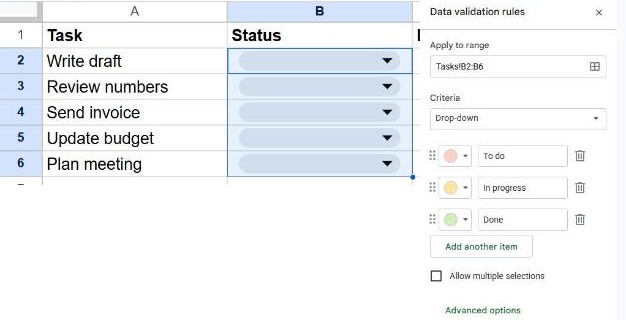
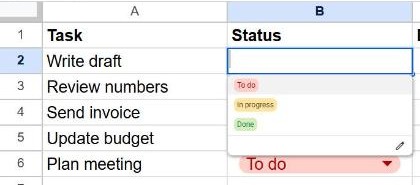
Each selected cell now shows a small arrow. Click it to pick a value.
Use a range of cells as the source
If the options already exist in your sheet, or change often, point the drop-down at them instead of typing them:
- Select the cells for the drop-down and open Insert → Dropdown.
- Under Criteria, change Dropdown to Dropdown (from a range).
- Enter the range, for example
Lists!A2:A20for cells on a sheet named Lists, or click the grid icon to select it. - Click Done.
Using a range that is longer than your list (like A2:A20 for five options) means new options you add below appear in the drop-down automatically. Empty cells are ignored.
Useful advanced options
Just below the options there's an Allow multiple selections box, which lets people pick more than one value per cell. Below that, open Advanced options:
- If the data is invalid: Reject the input (the default) blocks anything that isn't in the list; Show a warning lets people type something else but marks the cell.
- Display style: Chip shows each value as a colored pill, Arrow shows a plain arrow, and Plain text hides the arrow until the cell is clicked.
Edit or remove a drop-down list
- Edit: open the list in any cell and click the pencil icon at the bottom, or go to Data → Data validation and click the rule.
- Remove: open the rule and click Remove rule. The values already chosen stay in the cells as normal text.
Frequently asked questions
How do I copy a drop-down to more cells?
Copy a cell that has it and paste it into the new cells. The drop-down comes along. To copy only the drop-down and not the value, use Edit → Paste special → Data validation only.
Can I count how many rows have each option?
Yes, with COUNTIF: =COUNTIF(B2:B6, "Done"). See our COUNTIF guide.
How do I make a drop-down in Excel?
Excel uses Data Validation instead of an Insert menu. We cover it step by step in how to create a drop-down list in Excel.