How to Color Cells Based on Value in Google Sheets
Conditional formatting colors cells automatically based on what's in them: red for negative numbers, green for "Done", a heatmap for a column of scores. The colors update the moment the data changes, so your sheet always highlights what matters.
Color cells with a single-color rule
- Select the cells to format, for example a column of amounts.
- Go to Format → Conditional formatting. A panel opens on the right.
- Under Format cells if…, pick a condition such as Greater than, Text is exactly or Is between, and type the value.
- Choose a fill color under Formatting style.
- Click Done.
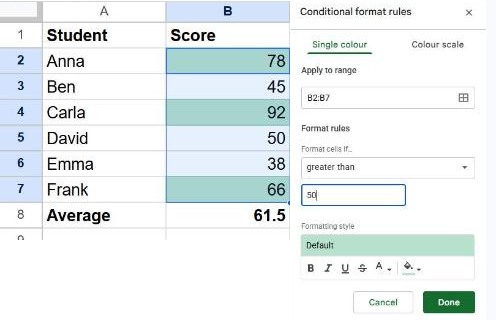
Common conditions
| Format cells if… | Use it for |
|---|---|
| Greater than / Less than | Large or small numbers (budgets, scores) |
| Text is exactly | Status words like "Done" or "Overdue" |
| Text contains | Any cell mentioning a keyword |
| Date is before | Overdue deadlines |
| Is empty / Is not empty | Missing or filled-in data |
Make a heatmap with a color scale
For a column of numbers, a color scale shades each cell by how big it is:
- Select the numbers and open Format → Conditional formatting.
- Click the Color scale tab at the top of the panel.
- Pick a preset, or set the min, midpoint and max colors yourself.
Color a whole row based on one cell
To color the entire row when a status column says "Overdue", select the whole table and use a custom formula. With the status in column D:
=$D2="Overdue"The dollar sign before D locks the column, so every cell in the row checks column D. This is the same technique used to highlight duplicates.
Edit or remove a rule
Select the range, open Format → Conditional formatting, and the existing rules appear. Click one to edit it, or hover and click the trash icon to delete it. Rules are checked top to bottom, and the first one that matches wins, so drag them to reorder if two overlap.
Frequently asked questions
Why isn't my rule working?
Check the Apply to range box at the top of the rule, and make sure numbers are stored as numbers, not text. A rule set for "greater than 50" won't fire on the text "60".
Can I copy conditional formatting to other cells?
Yes. Copy a formatted cell, select the target cells, and use Edit → Paste special → Conditional formatting only.
How many rules can one range have?
As many as you like. They stack, and the first matching rule decides the color.