How to Split Text into Columns in Google Sheets
Full names in one column, "City, Country" pairs, or data pasted from a CSV file all have the same problem: several pieces of information stuck in one cell. Google Sheets can split them into separate columns in seconds.
Split text to columns (menu)
- Make sure the columns to the right of your data are empty. The split results go there and overwrite anything in the way.
- Select the cells to split, for example
A2:A6. - Go to Data → Split text to columns.
- Sheets guesses the separator and splits right away. If the guess is wrong, use the Separator box that appears below the data to choose Comma, Semicolon, Period (Full stop in UK English), Space or Custom.
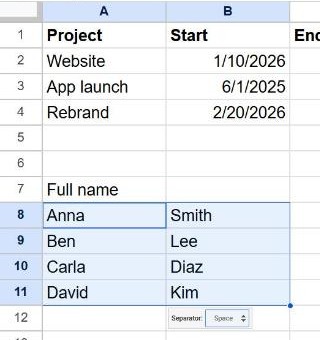
Keep the original: the menu option replaces your data. If you might need the full text later, copy the column first, or use the SPLIT function below.
The SPLIT function
SPLIT leaves the original cell untouched and puts the pieces in the cells to the right of the formula:
=SPLIT(A2, " ")Some useful separators:
| Text in A2 | Formula | Result |
|---|---|---|
| Anna Smith | =SPLIT(A2, " ") | Anna | Smith |
| Boston, USA | =SPLIT(A2, ", ", FALSE) | Boston | USA |
| red;green;blue | =SPLIT(A2, ";") | red | green | blue |
By default, SPLIT treats each character of the separator as a separate delimiter. In the second example, FALSE as the third argument tells it to split only on the exact text ", ".
Names with a middle name
"Mary Ann Lee" split on spaces gives three columns. To get the first word and "everything else", use:
=LEFT(A2, FIND(" ", A2)-1)for the first name, and
=MID(A2, FIND(" ", A2)+1, 100)for the rest.
Frequently asked questions
How do I combine columns back into one?
Use =A2&" "&B2, or =TEXTJOIN(" ", TRUE, A2:C2) to join several cells and skip empty ones.
Why did SPLIT remove leading zeros?
SPLIT converts pieces that look like numbers into numbers, so "007" becomes 7. Format the destination columns as Format → Number → Plain text before splitting, or use the menu option instead.
Why is "Split text to columns" greyed out?
You've selected cells in more than one column. Select a single column and try again.